
How to manually uninstall Easify V3
This article describes how you can manually uninstall Easify from your computer.
Uninstalling Easify is obviously not something you would do ordinarily, however if problems with your computer prevented Easify from installing properly, or if you have got to a point where you would like to run a clean install of Easify this article will explain the process.
1. Before You Start
Carrying out a manual uninstallation of Easify is not something you would ordinarily do. The process should only be carried out if instructed to do so by Easify support, or if a problem with your computer prevented easify from installing correctly.
Like most administrative operations on a computer, the manual uninstallation process is not without its risks, so make sure you have a full backup of your computer before you start, and if you are unsure about the procedure at any stage please refer the process to a qualified computer expert.
This article explains the uninstallation process with reference to Windows Vista. However the process is similar for Windows XP and Windows Server 2003.
You will need administrator priveledges in order to carry out the procedures listed in thsi article, so make sure you are logged on with an account that has administrator priveledges.
Easify makes use of a number of 3rd party software applications including Crystal Reports 2008 and Microsoft SQL Server 2005. These components must be uninstalled separately from Easify 2009 itself.
2. Uninstalling the Easify Client
Go to the control panel and select Uninstall a program.
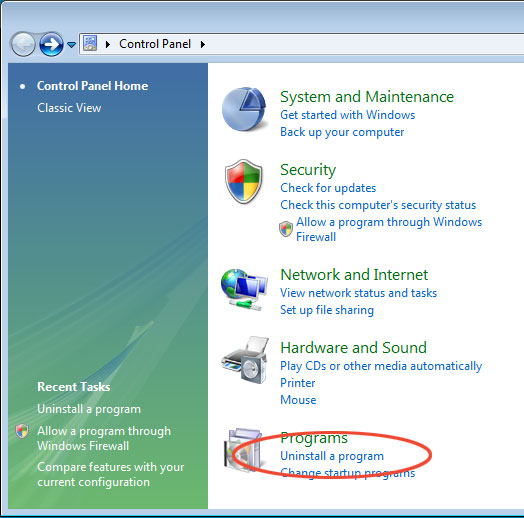
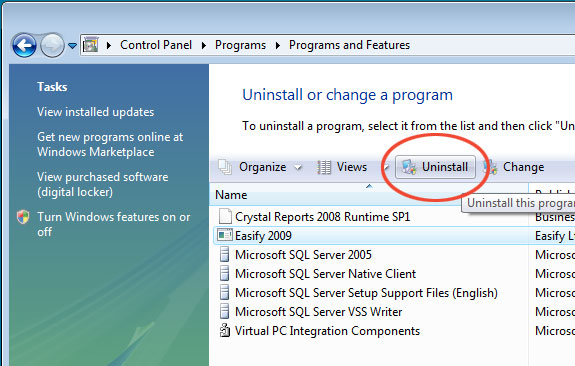
In the Programs and Features window, select Easify from the list of installed programs, and click the Uninstall button.
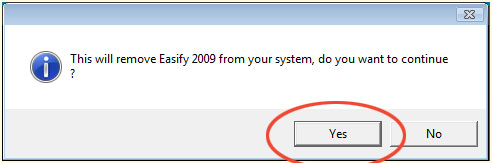
When asked whether you want to remove Easify from your system, click the Yes button.
The Easify client will be uninstalled, when finished click the Finish button.
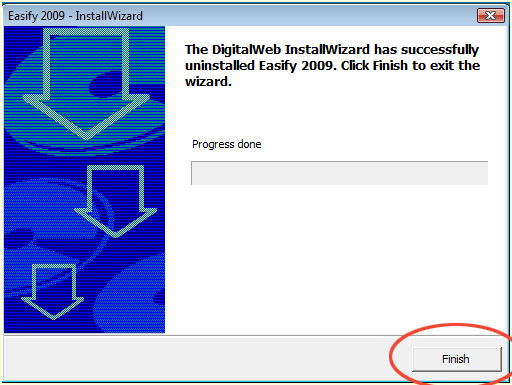
Uninstalling the Easify client typically takes from 30 seconds to 1 minute depending on the speed of your computer.
3. Uninstalling Crystal Reports 2008 Runtime
Easify uses the Crystal Reports 2008 Runtime to render its reports, quotes and invoices. If you are no longer using any programs that make use of the Crystal Reports 2008 Runtime you can safely remove this component.
As in the previous step, go to the control panel and select Uninstall a program.
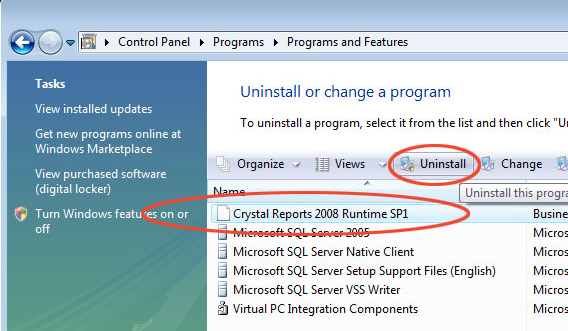
In the Programs and Features window select Crystal Reports 2008 Runtime SP1, and click the Uninstall button.
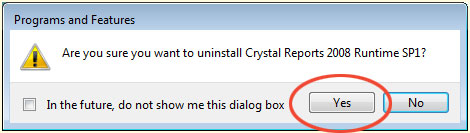
When asked to confirm that you wish to uninstall the Crystal reports 2008 Runtime, click the Yes button.
The Crystal Reports 2008 Runtime uninstallation will typically take between 2 and 5 minutes to complete depending on the speed of your computer.
4. Uninstalling SQL Server 2005
Easify 2009 uses Microsoft SQL Server 2005 to store all of its data. Before you can uninstall SQL 2005 you will need to ensure that it is not running on your computer.
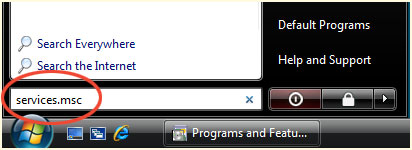
Click the Start button and in the run box, type services.msc and then press the Enter key.
When the Services window opens, scroll down until you find the service named SQL Server (EASIFY). Right click the SQL Server (EASIFY) service and select Stop from the context menu.
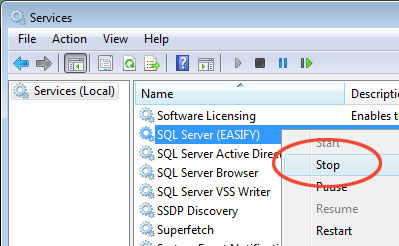
After few seconds the SQL Server (EASIFY) service will stop. You may now close the Services window.
Now that you have stopped the SQL Service you can proceed to uninstall SQL Server from your computer. As in the first step, go to the control panel and select Uninstall a program.
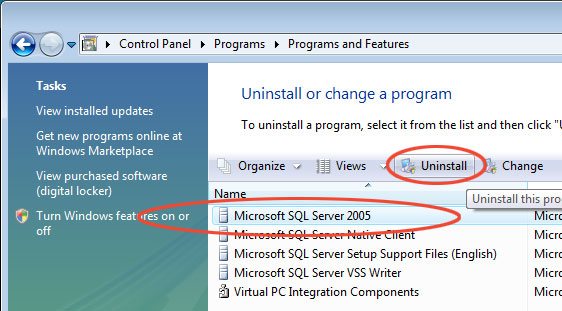
In the Programs and Features window select Microsoft SQL Server 2005, and click the Uninstall button.
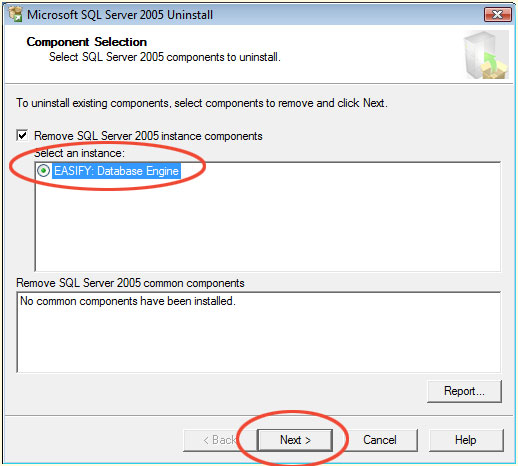
In the Microsoft SQL Server 2005 Uninstall dialogue select the instance named EASIFY: Database Engine. Note that if you have other SQL databases on your computer that use SQL 2005 they will be listed here. Make sure they are NOT selected, and that only the Easify instance is selected.
With only the Easify instance selected, click the Next button.
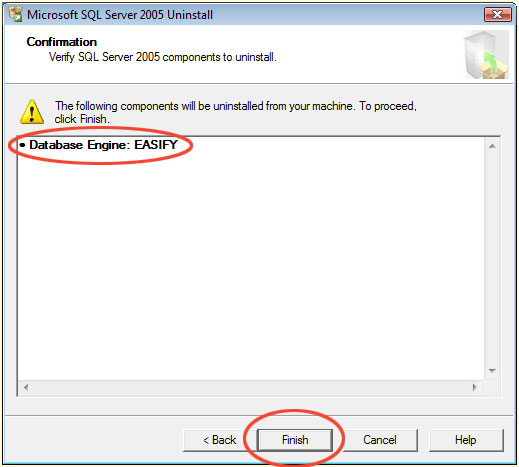
The next dialogue will summarise the databases that are to be removed, When you are happy that the only listed database is EASIFY click the Finish button.
SQL Server 2005 will be uninstalled, this process usually takes from 3 to 8 minutes depending on the speed of your computer.
Assuming you are not using any other applications that make use of SQL Server, you can uninstall the Microsoft SQL Server Native Client.
Go to the control panel and select Uninstall a program.
In the Programs and Features window select Microsoft SQL Server Native Client, and click the Uninstall button.
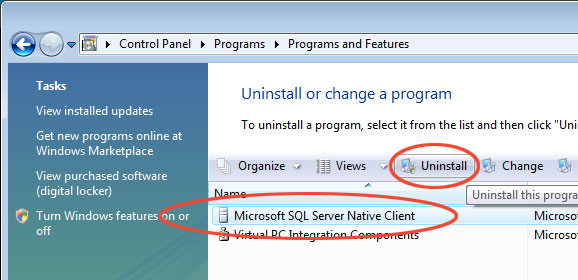
When asked to confirm that you wish to uninstall the Microsoft SQL Server Native Client, click the Yes button.
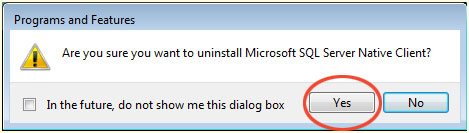
The SQL Native Client will typically take around 30 seconds to uninstall.
5. Cleaning up Unwanted Files
By this point you will have removed most of the components of Easify 2009, however there are a few files and folders that can be manually deleted.
On your computer browse to the C:\Program Files\ folder, and delete the Easify folder within it.
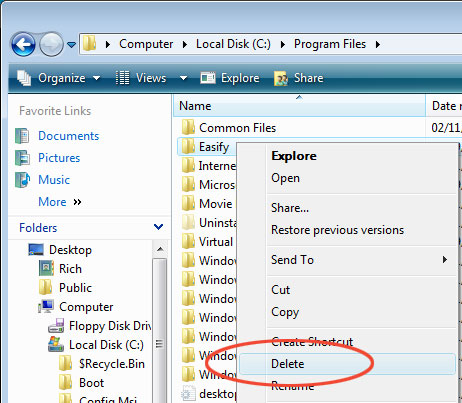
Next you should delete the old Easify SQL files. On your computer browse to the folder C:\Program Files\Microsoft SQL Server\MSSQL.1\MSSQL\Data, and delete all files with Easify in their name.
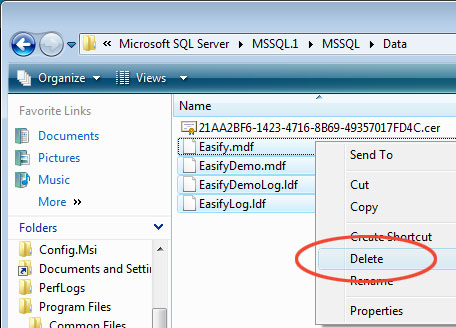
6. Cleaning up the Registry
If you are confident with registry editing then you can remove unwanted Easify settings from the registry.
Click the Start button and in the run box, type regedit and then press the Enter key.
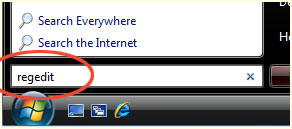
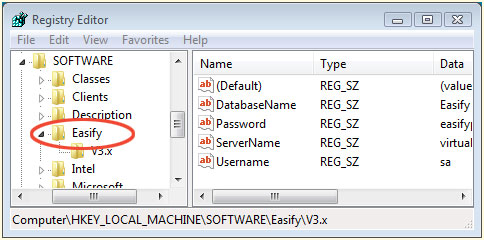
In the registry Editor navigate to the Easify key in Computer\HKEY_LOCAL_MACHINE\SOFTWARE\, right click the Easify key and select Delete to delete it.
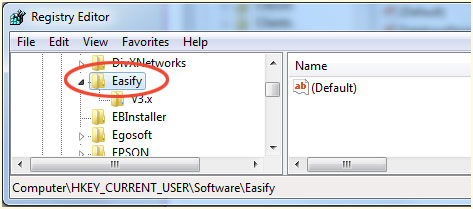
Still in the registry Editor navigate to the Easify key in Computer\HKEY_CURRENT_USER\SOFTWARE\, right click the Easify key and select Delete to delete it.
The Easify manual uninstallation process is now complete.