
Stock Control Software
Easify updates stock levels as you buy & sell.
- Automatically track stock levels as you buy & sell products
- Reserve products for customers
- Instantly see which items are low on stock
- Easily print a list of products needed to fulfil orders
- Sync your stock level with your website in real-time
How it works...

Create your products...
Create new products and organise them in to your own categories and subcategories.
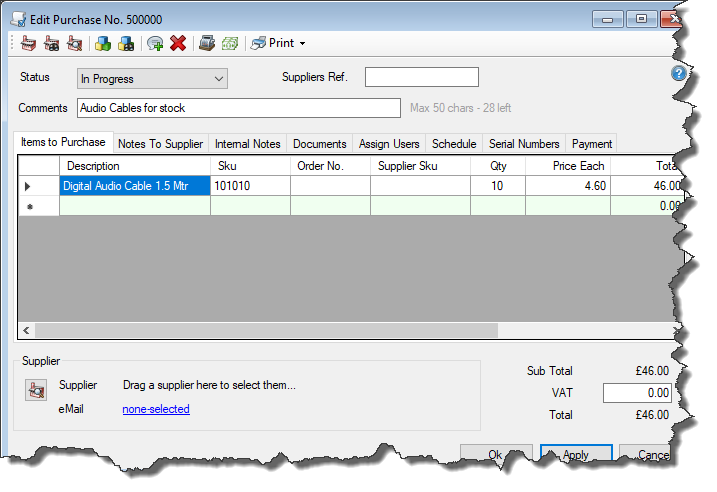
...update stock levels...
Use purchases to book products in to stock or manually set your own stock levels.

...and sell!
Every time you complete a sale, Easify will automatically adjust your stock levels accordingly.
Products
Products are at the heart of the stock control software - each product has its own record where it's stock level information is stored.
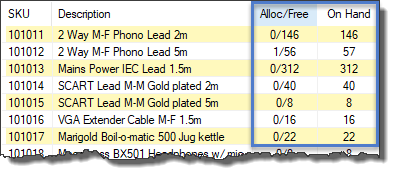
The main Products window in Easify lists your products and here you can choose to display extra information about your stock levels.
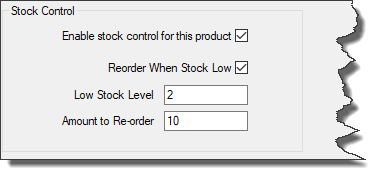
Each product has it's own set of stock control options.
Adding products to stock
Raise purchase orders or update stock levels manually.
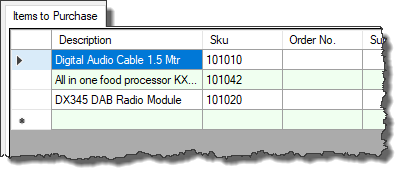
Order products from suppliers and once they have been delivered the stock control software automatically updates your stock levels.
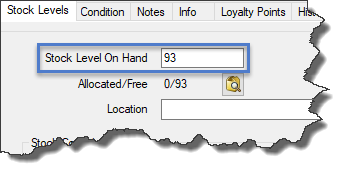
Or set your stock levels manually for products, individually or in a group.
Reserving stock for customers
Allocate products to customer orders to reserve them.

Check which customer orders your products have been allocated to. Easify uses a full allocation stock control software for the most efficient management of your inventory.

Built-in warnings and prompts ensure that you never oversell a product.
Selling products
Sell products through the Electronic Point of Sale (EPOS) and through the Orders & Quotes screen.


Sync stock with your website
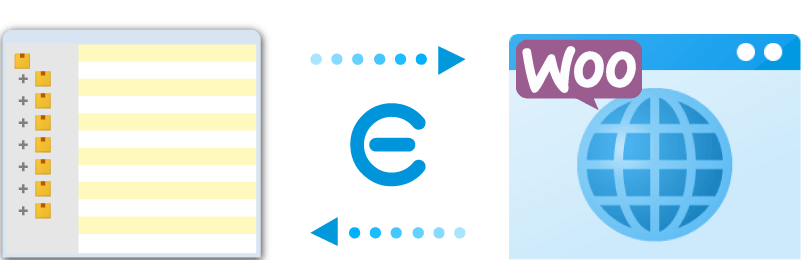
With our WooCommerce plugin, you can connect Easify to your online shop and the stock control software will synchronise your stock levels for online sales too.
If you have products that you don't wish to appear on the website then you can easily choose which products you want to publish and which ones you don't.
Stock Reports

Helpful stock reports are available in Easify and automatically generated by the stock control software. These reports include:
- Stock Take report
- Products needed for orders report
- Products needed for stock report
More information on Easify's reports can be found here: Reporting
Barcodes & Scanners

Easify also supports barcode scanner hardware to speed up the process of stock management.
Related features
Links to features mentioned on this page.
