How to Transfer Easify to Another Computer
Transferring Easify to another computer is not something that you would do on a
regular basis, and is an unfamiliar task for most people. As such we've prepared
this guide to take you through the process step by step.
Transferring Easify is quite a simple process when you know how, and comprises
nothing more clever than backing up Easify on the old computer, and restoring it
to the new one.
Backing up the Original Computer
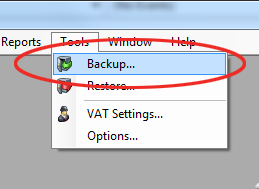
To backup Easify on the old computer, launch Easify and from the main menu
select Tools->Backup.
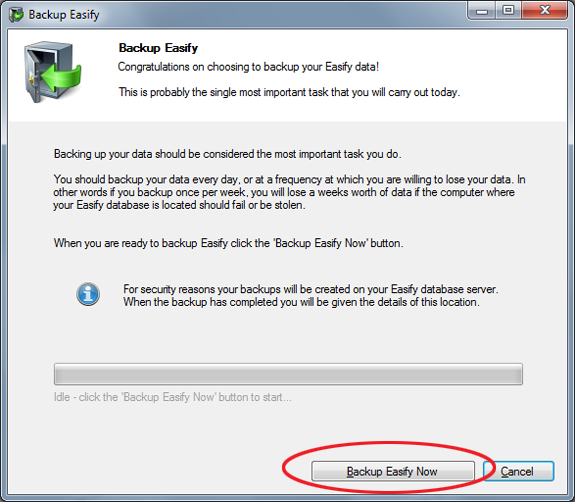
In the Backup Easify dialogue click the Backup Easify Now button to
backup Easify.

Note: Easify will save the backup on the computer where the database is
situated, so ensure that you carry out this procedure on the actual computer
that the database is installed on. In other words, if you backup Easify using
Computer A, but the database is on Computer B then the backup will be
saved on Computer B.
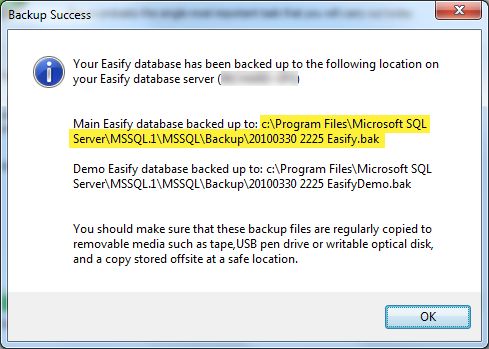
When the backup has succesfully completed you will be given the path and
filename of the backed up database as shown below:
Now browse your computer to the file highlighted in the above screenshot, and
copy the backup file to a USB pen drive or burn it to a CD (or other means of
getting the file off the old computer). You will need to copy this file to the
new computer in the next part of the procedure.
Preparing the New Computer
Now that you have your backup ready to go, it's time to prepare the new computer
so that you can restore the backed up Easify database to it.
This is also the point in the procedure that you would start with if you were
restoring Easify as part of a disaster recovery process. For example if your
Easify database computer has failed, you can carry on from here to re-install
Easify and restore your database to a new computer.
First you will need to install Easify on the new computer. Just opt for a
standard installation and accept all the default options.
See here for full
details on performing a standard installation.
Note: We recommend that you download and install the latest version of Easify
from our website, however if you have a copy of the original installation file
that you used on the original computer you can use that instead.
Restoring Easify on Your New Computer
Now that you have a fresh installation of Easify on your new computer it is time
to restore the database that you backed up in the first half of this procedure.
First you will need to copy the backup file that you created earlier into the
correct folder on your new computer. Unfortunately the path of the folder can
vary depending on whether you have any other Microsoft SQL based programs on
your computer, fortunately there is an easy way to find the correct folder.
To locate the correct folder to copy your backup file to, launch Easify and
carry out a backup as described at the start of this article, only this time you
will be using the new computer and the fresh install of Easify.
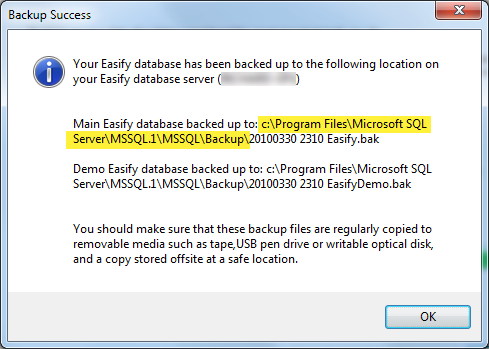
When you get the Backup Success dialogue, note the path that Easify has saved
the backup to - this is the location where you should copy your backup file to.
Browse your computer to the path as highlighted in the screenshot above (or
whatever your path is if different) and copy your original backup file to this
location.
Note: If you are moving to a computer running a 64 bit version of Windows, the
destination Program Files folder path will actually be Program Files (x86).
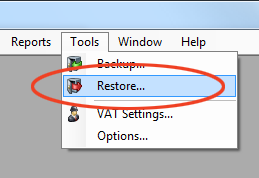
Now you need to restore the original backup file, from Easify click the
Tools->Restore menu.
You will be prompted to confirm that you want to restore Easify, since you are
restoring to a fresh install there isn't much to debate here so click the Yes
button to continue.
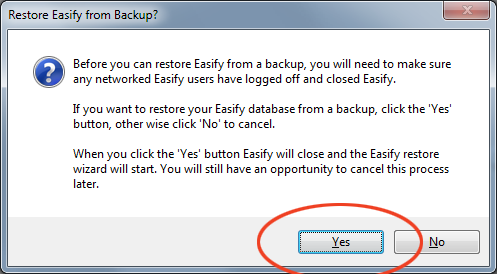
When you click the Yes button, Easify will close and the Restore
Easify wizard will launch itself.
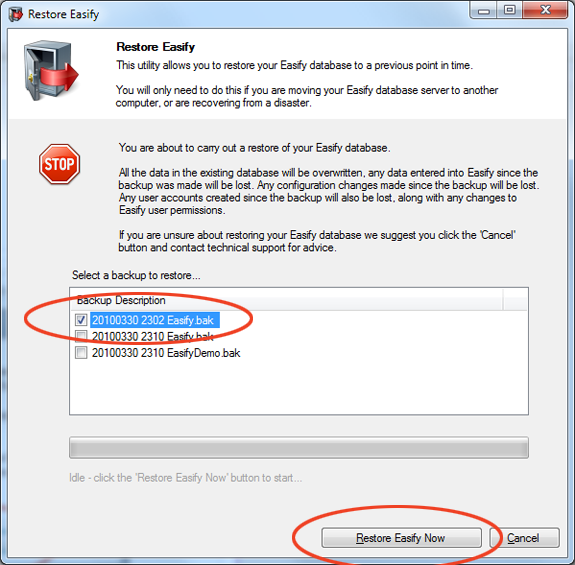
In the list of backup descriptions you will see three backup files (assuming you
have followed this procedure correctly). Two will have been created just now
when you did the backup of the fresh install of Easify to determine the path of
the backup files. The other will be the backup file you originally created in
the first half of this procedure.
Select the backup file that you copied from the old computer.
Note: Easify backup file names consist of the Year, Month, Date and time in 24hr
format so it is easy to tell which backup file you need.
When you have selected the correct backup file, click the Restore Easify Now
button.
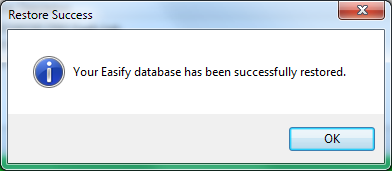
If everything goes according to plan you will see the dialogue above telling you
that your database has been successfully restored.
Click OK to close the dialogue and you're done. You can now launch Easify
on your new computer and it will contain all the data from your old computer.

Restoring an Older Version of Easify
If you have restored an older version of the Easify database than the fresh
version of Easify you have installed on the new computer, you will be met with
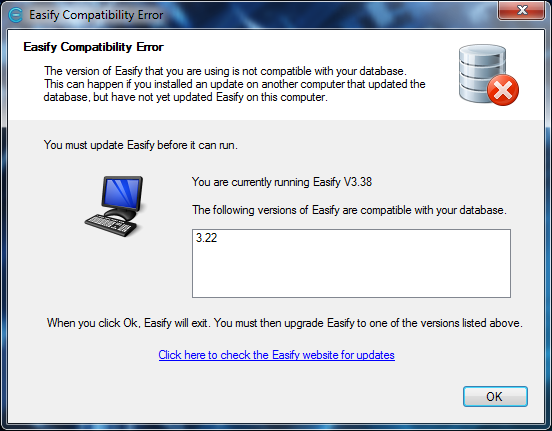
the following dialogue when you try to launch Easify:
In the above example the backup was of an Easify V3.22 database whereas the
freshly installed version of Easify is V3.38.
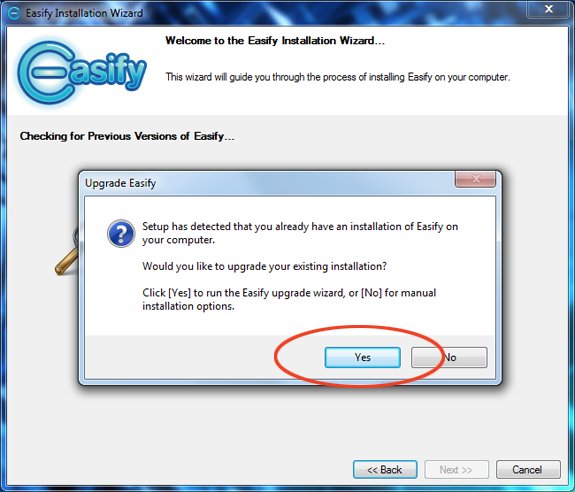
This can be easily fixed by simply re-running the Easify installation, and when
asked whether you would like to upgrade Easify to the latest version select
Yes.
Continue with the rest of the installation wizard and your old version database
will be upgraded to the latest version.