
Security - Users
Each person that uses Easify must have an Easify user account. When you first install Easify a single user named Administrator is created.
The administrator account has full permissions for all areas of Easify and is intended for use by managers or owners to administer Easify. We recommend that you choose a strong password for the administrator account and do not disclose it to anyone.
User accounts in Easify are used not only for security i.e. when you login to Easify, but are also used to assign users to jobs, to record users hours from time-sheets, and to log events to the Easify history log.
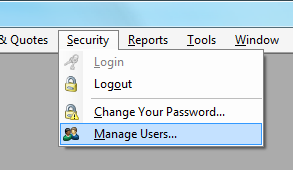
Open existing users in Easify Pro via the Security → Manage Users menu on the main Easify window.
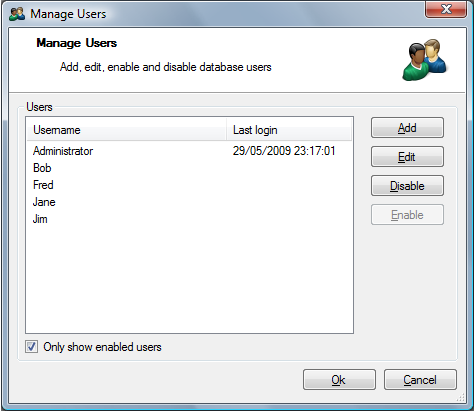
The Manage Users window displays a list of all the Easify users that have been created, and allows you to Edit / Disable / Enable user accounts as desired.
Adding New Users
There is no Add button in Easify Pro. Add users in Easify Web as described in Manage Users in Easify Web.
Editing Users
To edit a users details, select the user in the Manage Users window and click the Edit button.
Easify Login
The first page of the Edit User window is the Easify Login tab. Here you can edit the Username and Email address of the user.
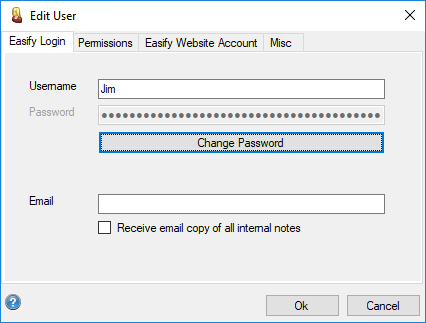
People who sign in with easify.co.uk should change their password on the Easify website, not in Easify Pro. Change Password in Pro is only for a local Administrator-style login that has no website email.
Permissions
The next page of the Edit User window is the Permissions tab.
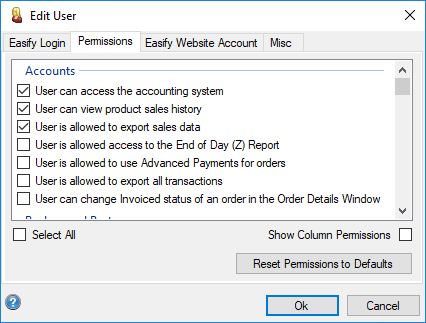
Here you will see a list of all available Easify permissions showing which permissions the selected user has been granted. Click here for a full list of Easify Permissions and their meanings.
Show Column Permissions: Users can choose what columns of data appear in the main Easify screens such as Customers, Orders, Purchases and Products. Ticking this box will show the user permissions that allow or deny users from viewing the columns in the main Easify screens. There are a lot of columns that the user can have permission set for, so these are hidden by default in order to reduce clutter.
Reset Permissions to Defaults: Click this button to apply the default set of user permissions for a user. Note that this will give the user a very restrictive set of permissions, and they will only be given basic access to columns.
Reset users hidden message boxes so that they all show again: As users use Easify, some of the message boxes that appear have the option to "Don't show me this again". The need may arise to re-enable the display of a message box that was once hidden, clicking this button will reset all of the message boxes in Easify so that they will appear again.
Easify Website Account
There is no Easify Website Account tab in Easify Pro. Adding someone in Easify Web creates the website login (or attaches an existing one), the tenant user, and the cloud server link when they have a current user subscription.
Misc
The final page of the Edit User window is the Misc tab.
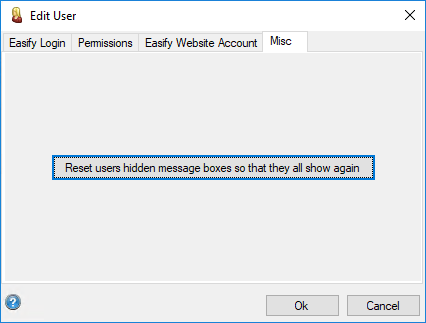
Here you can reset any messages that had previously been hidden by the user.
Disabling User Accounts
In order for Easify to maintain the integrity of your data, you are not permitted to delete Easify user accounts. Instead you have the option of disabling user accounts that you no longer need.
To disable a user account, simply select the user whose account you wish to disable, and click the Disable button.
Disable only affects this server. Their user subscription is unchanged. The Only show enabled users tick box in the Manage Users window allows you to choose to only view active user accounts. If you wish to view user accounts that have been disabled untick this box. You can re-enable a disabled user account by selecting the disabled account and clicking the Enable button.