
Managing Easify users
Overview
People sign into Easify with their easify.co.uk email and password. Add them to this server in Easify Web → Tools → Manage Users. You do not add users in Easify Pro, and you do not associate a website account on a separate tab.
A user subscription (Easify Web or Easify Pro) is required to sign in. It is valid on any Easify server. You can still buy subscriptions on the website store. You can assign an unused subscription while adding the person, or later on the same Manage Users page.
NOTE: The email they use on easify.co.uk is the username they use in Easify.
Adding a user in Easify Web
In Easify Web, open Tools → Manage Users and click Add. You need the Manage Users permission on this server.
Enter their email, first name and surname. Then either:
- set a password now, or
- leave the password blank and we email them a link to set one.
If they already have an easify.co.uk account, that login is used. A second account is not created.
Optionally assign an unused Easify Web or Easify Pro user subscription from this company, or add them with no subscription yet. Unlicensed people appear in Manage Users but cannot sign in until a current subscription is assigned. If they already have a current user subscription, another one is not assigned.
Set their tenant permissions on the same form. Tick Website company administrator only if they should manage company details on easify.co.uk. That is separate from tenant permissions.
Open the Easify Web Manage Users help for the full field list, assign later, unassign, and disable.
Assigning a user to a company
Adding someone in Easify Web also adds them to this company on easify.co.uk. You can still manage website company membership from the website if you need to.
On the Easify Website go to the Home Menu and select Manage My Account.
Click the Manage Users button.

NOTE: If you are associated with multiple companies on the Easify Website, you will be prompted to select the company. Otherwise you will be taken straight to the Manage Users page.
On the Manage Users page you will see a list of Easify Website users that are associated with your chosen company.
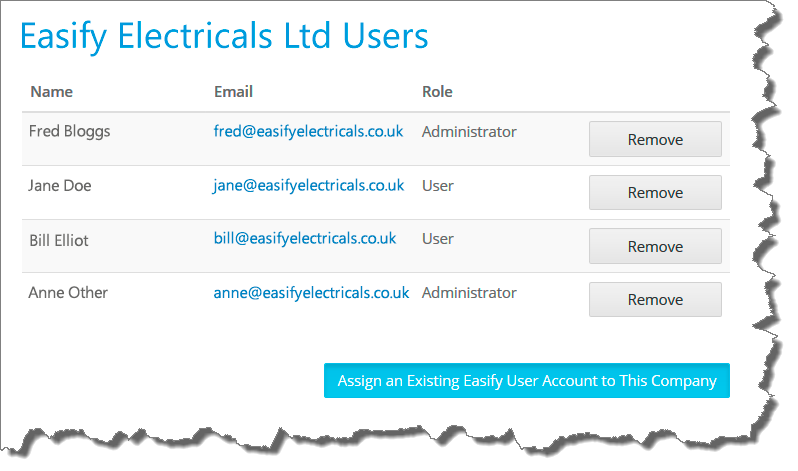
To assign an existing easify.co.uk account to the company, click the Assign an Existing Easify User Account to This Company button.
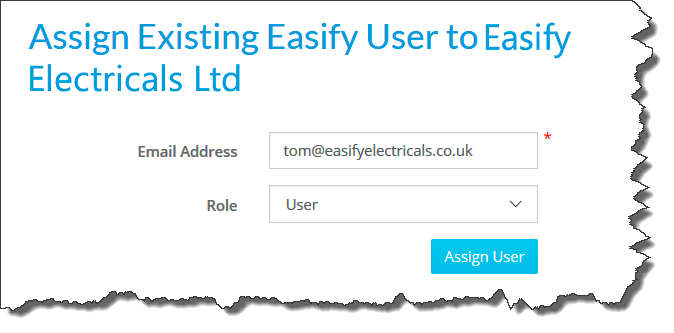
Enter the email address of the Easify Website account and click the Assign User button.
We typically recommend leaving the users role as User, and not Administrator because Administrators have permission to edit other users in the company they are assigned to on the Easify Website.
Assigning a User to a current Easify user subscription
Prefer assigning unused user subscriptions in Easify Web → Manage Users. You can still assign them on the website Manage Subscriptions page. Both write the same subscription on the website account.
To assign a user to a subscription on the website, go to the Home Menu and select Manage My Account.
Click the Manage Subscriptions button.

NOTE: If you are associated with multiple companies on the Easify Website, you will be prompted to select the company that you want to manage the subscriptions for. Otherwise you will be taken straight to the Manage Subscriptions page.
You will see a list of all your Current (and Expired) Subscriptions. By using the drop down arrow next to the subscription you can select which user is assigned to that subscription.
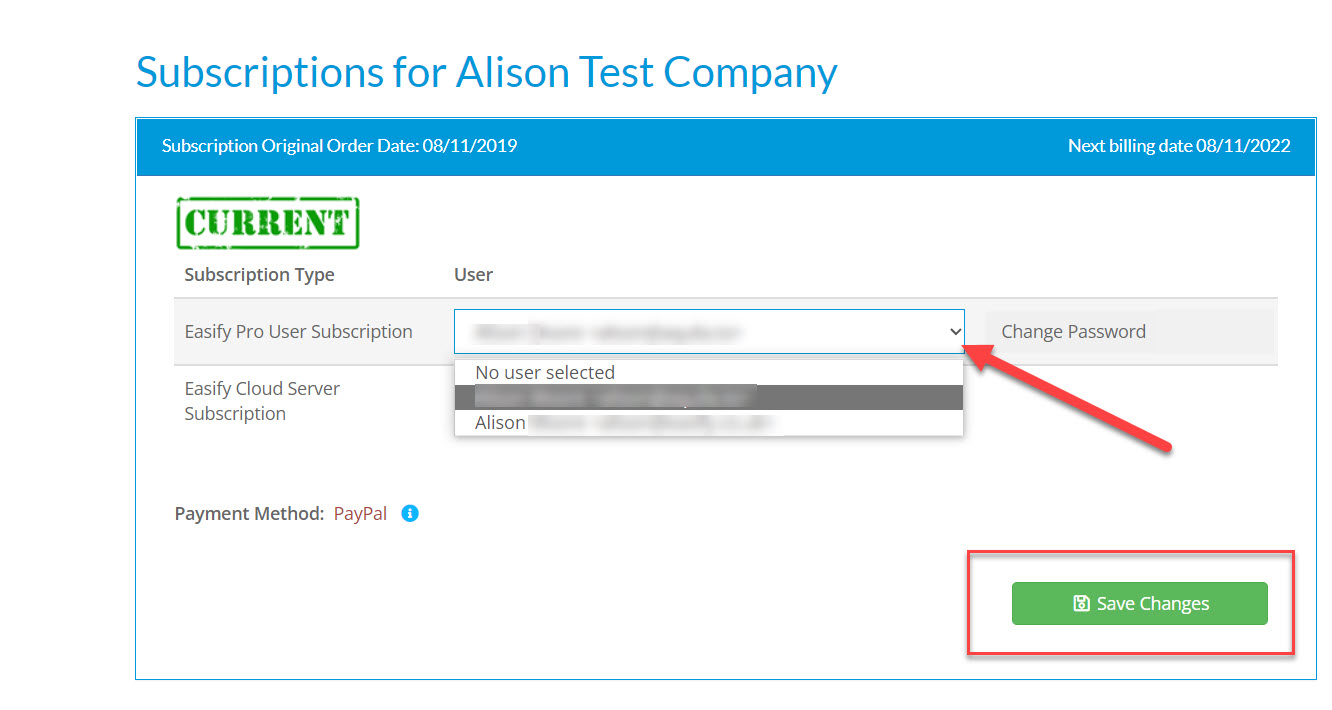
Remember to Click Save Changes once you have made the necessary changes.
Please note: Sometimes you have to unassign a user from a subscription before you can save a new one. This is due to cookies overriding your changes. If you find that it is not saving your changes, unassign a user (so it shows 'No user selected') and click on Save Changes. You'll then be able to add the new user and click on Save Changes again, and it should save the changes correctly.
Buy extra user subscriptions from the website store. You cannot buy them from inside Easify Web.