Dashboard
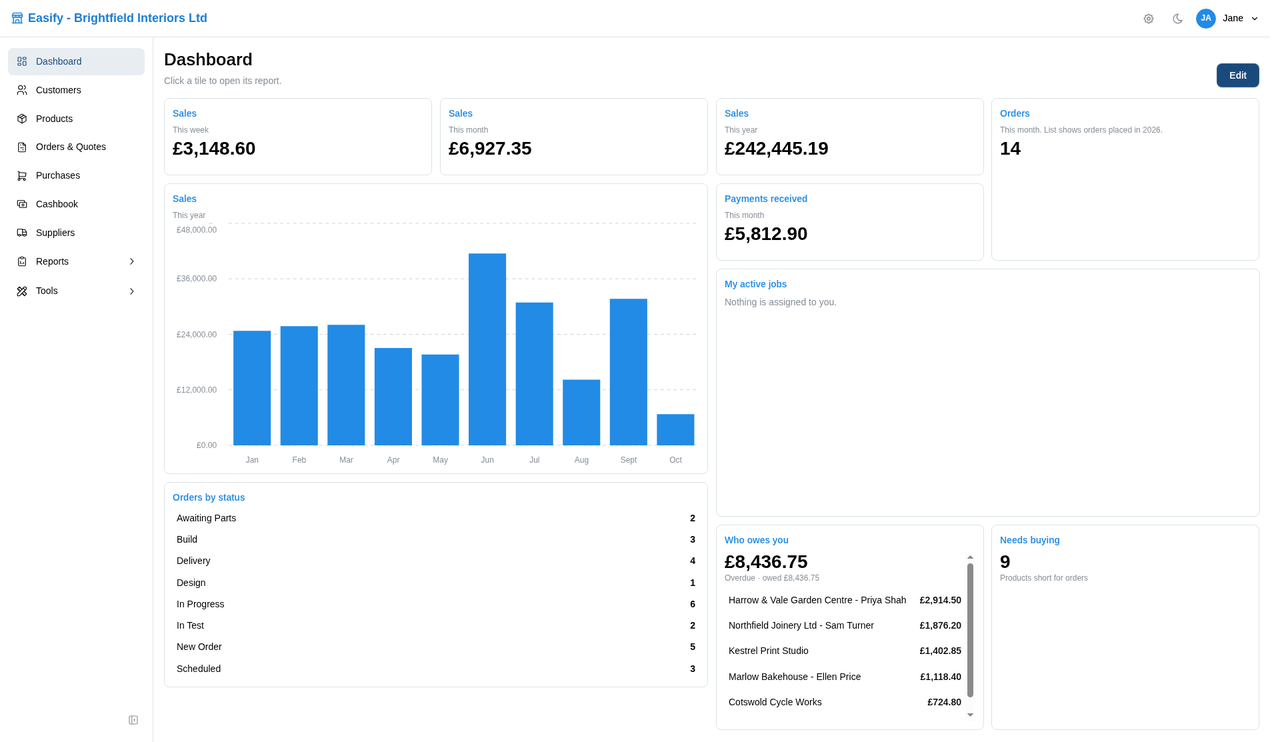
The dashboard is the first page you see after you sign in to Easify Web. It gives you a quick picture of how the business is doing and what needs your attention: sales, money coming in, orders, the jobs assigned to you, who owes you money, and what needs buying.
The dashboard is made of tiles. You choose which tiles you want, where they go, and how big they are. Your arrangement is saved for you, so it is the same every time you sign in.
To come back to the dashboard at any time, click Dashboard at the top of the sidebar, or click the company name in the top bar.
The tiles
There are two kinds of tile: figure tiles and work tiles.
Figure tiles
A figure tile shows one total for a date range you pick, either as a single number or as a bar chart. The date range is shown in small grey text under the tile title.
- Sales - the net value of your orders for the dates. Quotes and inactive orders are left out. It is the same figure as the Sales report for the same dates.
- Payments received - money received from customers for the dates, matching the Payments Rec'd report.
- Purchases - the value of purchases you placed with suppliers for the dates, matching the Purchases report. Cancelled purchases are left out.
- Orders - how many orders were placed for the dates. This is a count, not a money value.
Money is shown in your company currency (pounds unless your Finance options say otherwise). You can have the same figure more than once, for example Sales for Today as a number and Sales for This year as a chart.
Work tiles
Work tiles show what needs doing right now. They do not have a date range or a chart.
- My active jobs - orders, quotes and purchases that are assigned to you and still open, newest first. Orders and quotes are shown while they are active (a quote marked Quote Complete drops off). Purchases are shown while they are In Progress or On Order. Each line shows the number and the customer or supplier, any comments, the due date or required-by date if there is one, and the date it was raised. Click a line to open that order or purchase.
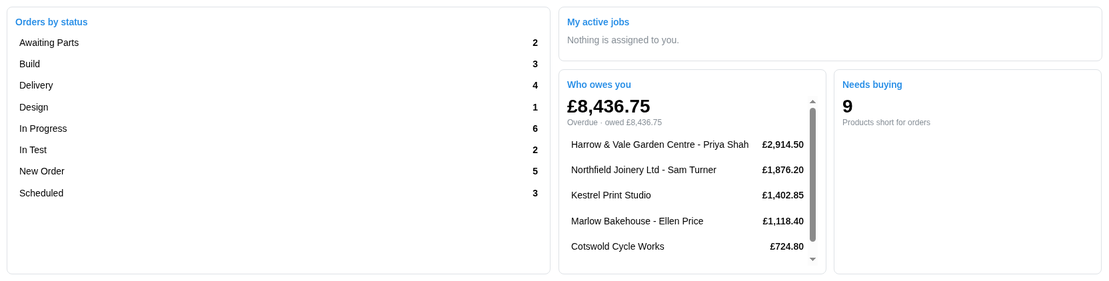
- Orders by status - each of your active order statuses with the number of orders in it. Click a status to open the Orders list showing just that status.
- Who owes you - the big figure is the total that is overdue, with the total owed underneath. Below that are the customers with the most overdue (up to eight). Click a customer to open their record. The figures follow the same rules as the Who Owes You Money report.
- Needs buying - how many products you are short of for your active orders, after allowing for the stock you already have. It is the same list as the Products Needed for Orders report.
Choosing the dates
Each figure tile uses one of four date ranges:
- Today - from midnight until now. The chart has one bar per hour.
- This week - from Monday until now. The chart has one bar per day.
- This month - from the 1st of the month until now. The chart has one bar per day.
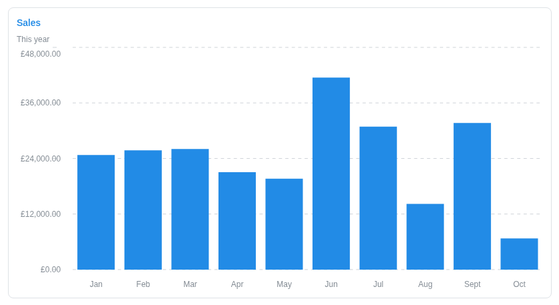
- This year - from 1 January until now. The chart has one bar per month.
The dates follow the clock on your Easify Server, and the chart never shows bars for times that have not happened yet. You pick the range when you add a figure tile, and you can change it later while editing the dashboard (see below). On the tile itself the buttons are shortened to Today, Week, Month and Year.
Number or chart
A figure tile can show its total as a Number or as a Chart. The chart is a bar chart of the same figures, split up by hour, day or month as described above. If there is nothing in the date range, the number shows zero and the chart says "No figures in this range."
Charts need more room than numbers, so when you switch a small number tile to a chart it grows to fit, and when you switch a big chart back to a number it shrinks.

Opening a report from a tile
The tile titles are shown in blue. Click a tile (or its title) to open the matching report or list. Figure tiles open the report for the same dates, so you can see the detail behind the number.
- Sales opens the Sales report.
- Payments received opens the Payments Rec'd report.
- Purchases opens the Purchases report.
- Orders opens the Orders list showing active orders for the year. The tile reminds you of this with a note such as "List shows orders placed in 2026."
- My active jobs opens the Active Jobs List report, if you have permission for production reports. Without it, the title is not a link, but you can still click each job.
- Orders by status opens the Orders list showing all active orders.
- Who owes you opens the Who Owes You Money report.
- Needs buying opens the Products Needed for Orders report.
See Reports for more about running reports.
Changing your dashboard
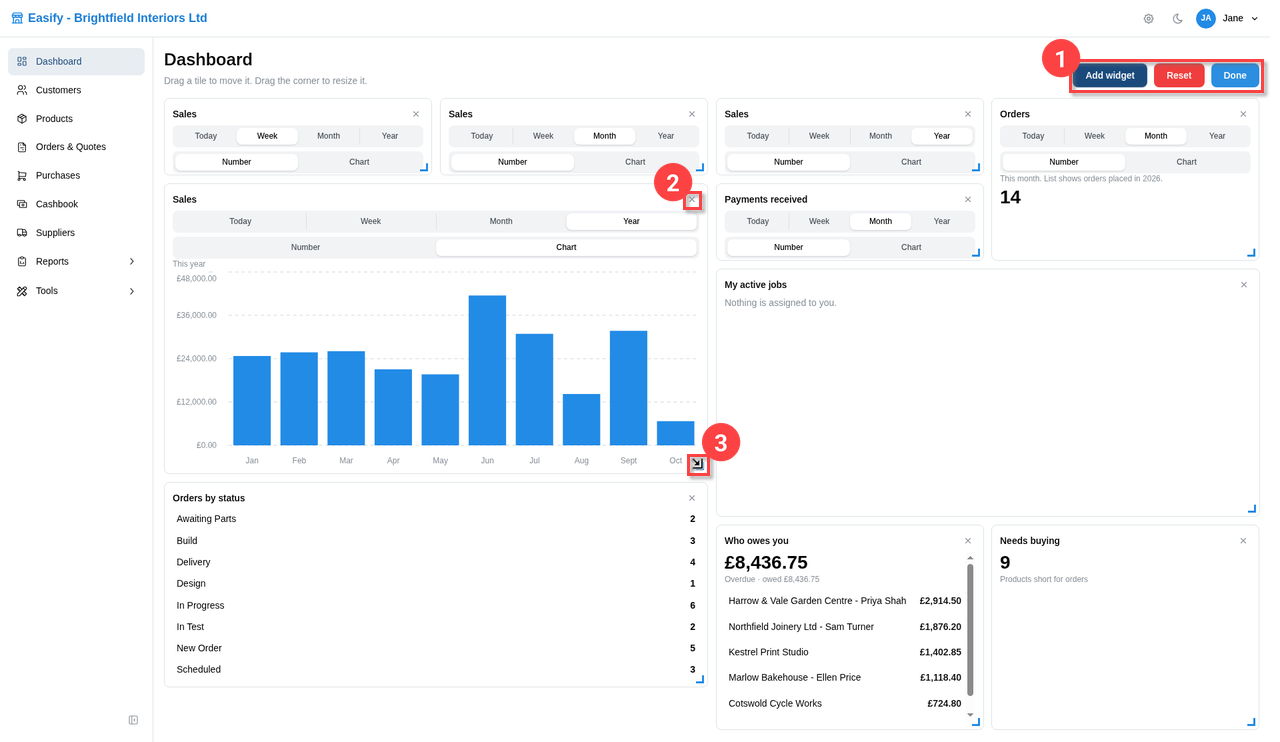
Click Edit at the top right of the dashboard. While you are editing, clicking a tile does not open its report, so you can move things around safely. The grey line under the title changes to "Drag a tile to move it. Drag the corner to resize it." and the Edit button is replaced by Add widget, Reset and Done (1).
- Move a tile - click and drag the tile to a new place. It snaps into line with the other tiles, and the other tiles move out of the way.
- Resize a tile - drag the blue corner at the bottom right of the tile (3). Each kind of tile has a smallest and largest size, so a list cannot be squashed to one line and a single number cannot be stretched across the whole page.
- Remove a tile - click the X at the top right of the tile (2).
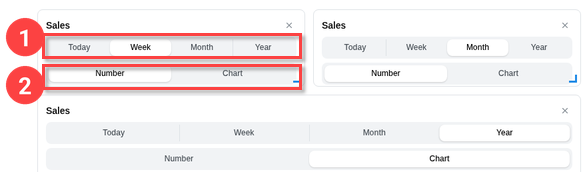
- Change the dates or the display - figure tiles show two rows of buttons while you are editing. Pick Today, Week, Month or Year, and Number or Chart. The tile updates straight away.
When you have finished, click Done.
While you are editing, each figure tile shows its date buttons, Today, Week, Month and Year (1), and its Number and Chart buttons (2).
Adding a tile
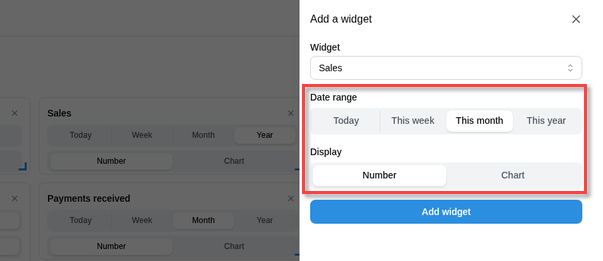
- While editing, click Add widget. The Add a widget panel opens on the right.
- Choose a tile from the Widget list. Only tiles you have permission to see are listed.
- For a figure tile, choose the Date range (Today, This week, This month or This year) and the Display (Number or Chart).
- Click Add widget. The new tile appears at the bottom of the dashboard, ready to move and resize.
A dashboard can hold up to 24 tiles.
Going back to the standard layout
While editing, click Reset. Easify Web asks "Reset the dashboard to the default layout? Your saved arrangement will be removed." Click Reset to confirm, or Cancel to keep your layout.
Your layout is saved for you
There is no Save button. Every change you make (moving, resizing, adding, removing, or changing the dates or display) is saved automatically a moment later. Your layout is stored on your Easify Server against your user, so it follows you to any computer or browser where you sign in. Other people's dashboards are not affected by your changes, and yours is not affected by theirs.
Until you change something, you see the standard layout. If the standard layout is improved in a later version of Easify, you get the new one automatically as long as you have not customised yours.
If a change cannot be saved, a red "Could not save the dashboard" message appears. Check your connection and try the change again.
On a phone or narrow screen
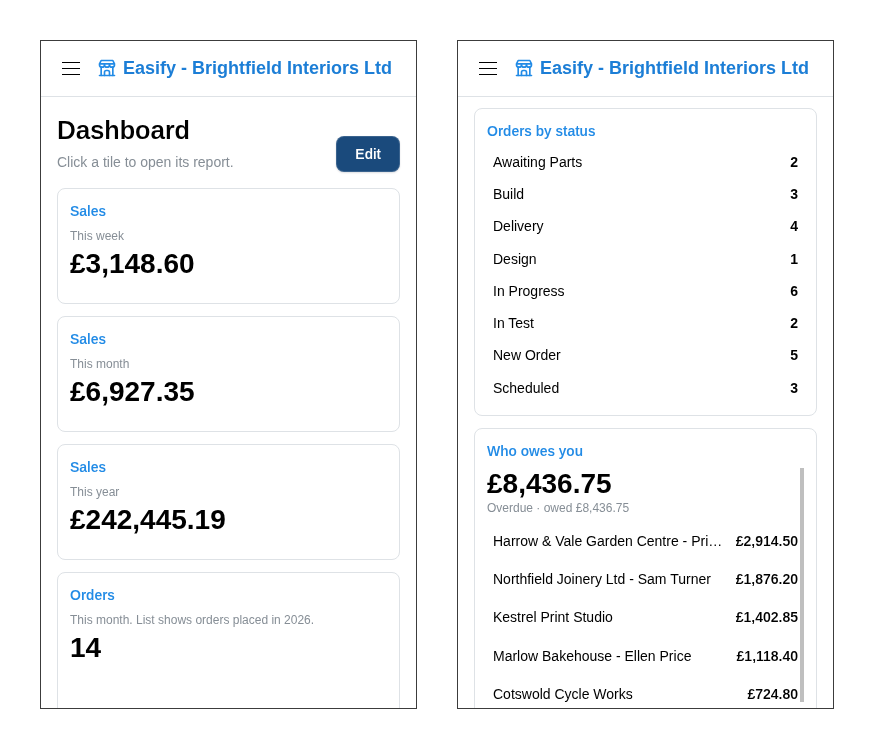
When the screen is narrow, such as on a phone, a small tablet, or a narrow browser window, the tiles are shown one under another in a single column. They keep the same order as on a wide screen, reading across and then down. Everything still works: tap a tile to open its report.
You can still click Edit to add or remove tiles and to change the dates or display of a figure tile. Moving and resizing only work on a wider screen, and the dashboard tells you so: "Add or remove tiles. Move and resize them on a wider screen." Viewing the dashboard on a phone does not change the layout you have set up on your computer.
Tiles you do not have permission for
The dashboard only shows tiles for the parts of Easify you are allowed to use. Tiles you do not have permission for do not appear on your dashboard and are not offered in the Add widget list. The remaining tiles move up to fill the gaps.
- Sales, Payments received, Purchases and Who owes you need access to accounts.
- Orders and Orders by status need access to orders.
- Needs buying needs access to purchasing.
- My active jobs needs access to orders or purchasing. If you only have one of them, it shows only your orders or only your purchases.
This means, for example, that a salesperson without access to accounts can see the Orders tile and their own jobs, but never sees sales or payment totals. If your permissions change later, the tiles you had come back where they were. Permissions are set by your administrator in Manage Users.
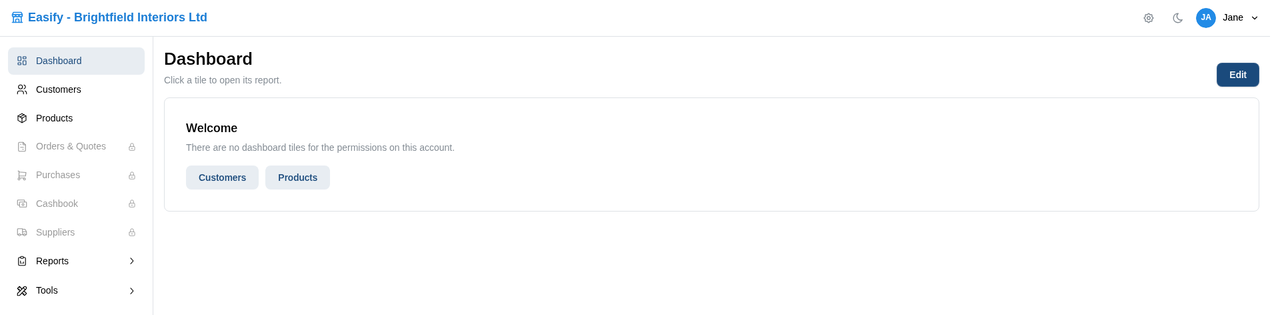
If none of the tiles are available to you, the dashboard shows a Welcome panel saying "There are no dashboard tiles for the permissions on this account." with buttons for the screens you can open, such as Customers, Products, Orders, Purchases, Cashbook and Suppliers.